What you need
- SimuCraft for Windows, 0.6.5 beta or later, or the web version for everything but uploading.
- Optional: a Guition JC1060P470C (7") or JC4880P443C (4.3"), a small speaker on its speaker connector, and Wi-Fi.
- Read Writing for the display boards first: this lesson uses its words
(USER CODE sections, handlers,
ui_update) without explaining them again.
Open Examples → Guition 7" P4 display → Bedside clock. The 4.3" and the M5Stack Tab5 have the same clock, laid out for their screens, and Clock radio on a battery is the same sketch with two 18650 cells, a BMS and a battery reading.
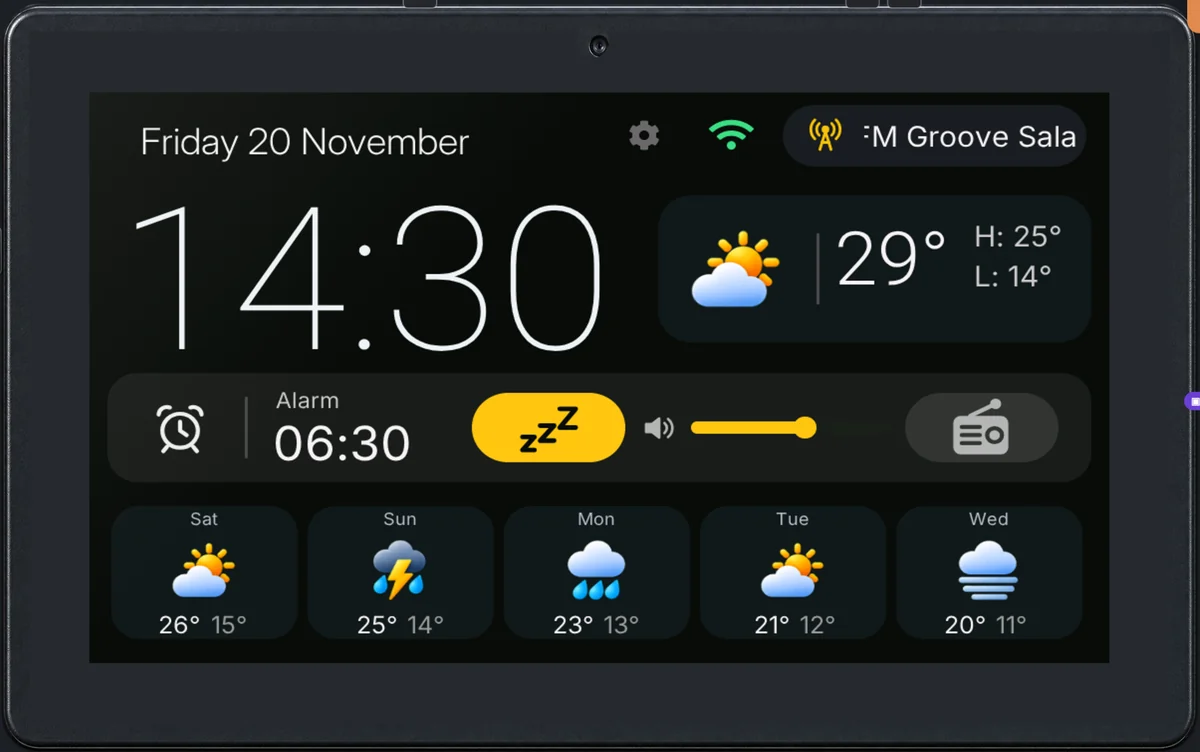
1. What it does
- The time, in huge thin figures, set from the internet; the date under it.
- The weather: the temperature, today's high and low, sunrise and sunset, and five days ahead. A tap on the weather opens the full weather screen.
- An alarm on the days you choose, playing an internet station or one of its own sounds, getting louder over its first minute. For twenty minutes before, the screen brightens like a sunrise in warm white. Snooze gives nine minutes.
- A radio: your stations with favourites first, a level meter, the song playing, a sleep timer, and a station finder that searches a free directory of about 50,000 stations.
- Brightness that follows the day: full by day, a glow at night, and a first tap that only wakes it; dimming when untouched can be switched on in Setup.
- Settings for all of it, kept in the board's flash.
2. The screens, in the designer
Click Design screen on the board. The clock has ten screens, one tab each:
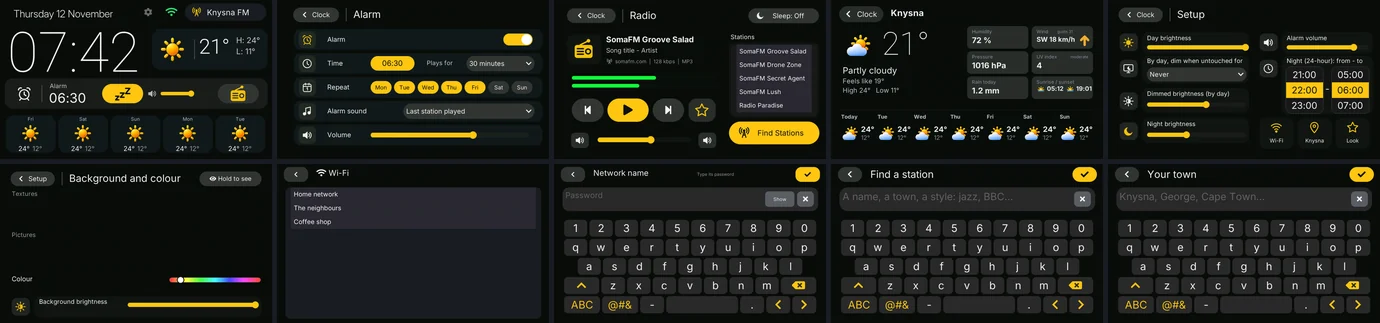
| Screen | Name in the code | Opened by |
|---|---|---|
| Clock | ui_main | the board starting; Back on the others |
| Alarm | ui_alarm_screen | the alarm time on the clock (Go to screen) |
| Radio | ui_radio_screen | the radio set or the station on the clock (Go to screen, and code to start the radio) |
| Weather | ui_weather_screen | a tap on the weather (code: wx_open) |
| Setup | ui_setup_screen | the gear (Go to screen) |
| Background | ui_bg_screen | Setup's background tile |
| Wi-Fi networks | ui_wifi_screen | the Wi-Fi icon, or Setup's Wi-Fi tile; made by + Wi-Fi screens |
| Wi-Fi password | ui_wifipass_screen | a network picked in the list; the keyboard to type its password |
| Find stations | ui_find_screen | Find stations on the Radio screen |
| Your town | ui_town_screen | Setup's town tile |
Most screens open from a button with When it is pressed → Go to screen. Two open from code instead, because a tap has to work on things that aren't buttons: the weather screen opens from a tap anywhere on the weather card, its picture and its labels; and the town and Wi-Fi screens are opened by the Setup screen's code, which fills them first.
Some screens look half-empty in the designer: the Background screen's grid of tiles and the Radio screen's station list are built by the code, because how many there are isn't known until the board runs (see Patterns).
3. The clock screen, widget by widget
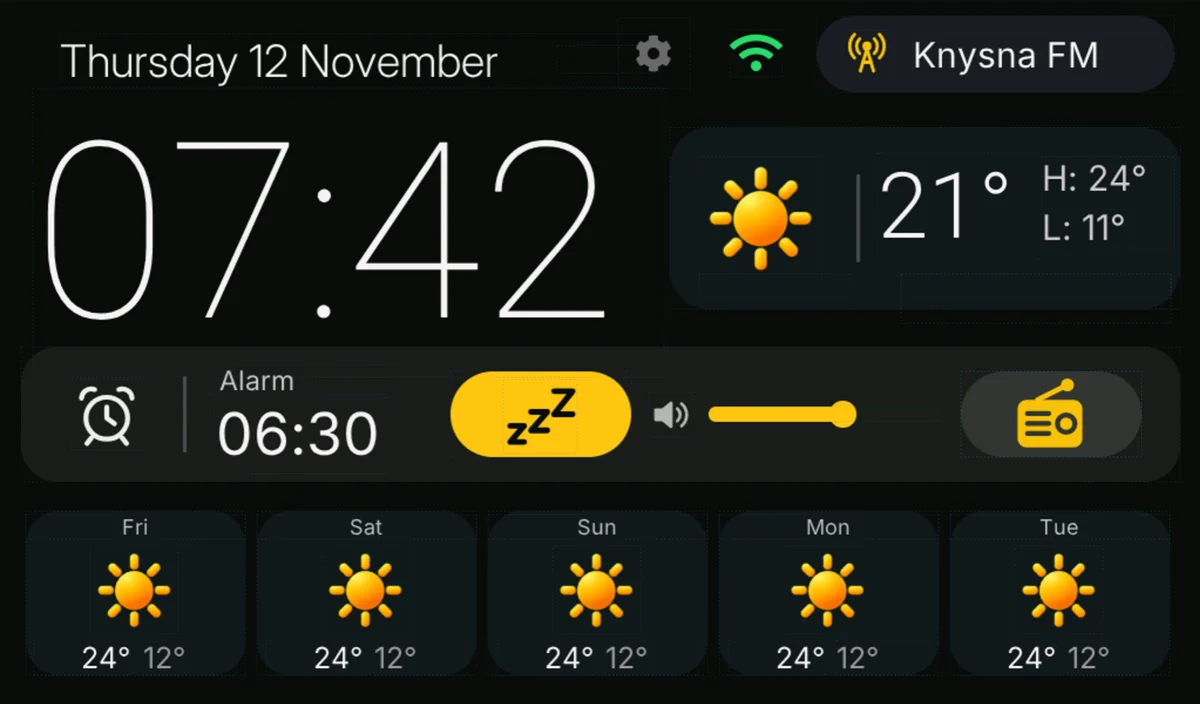
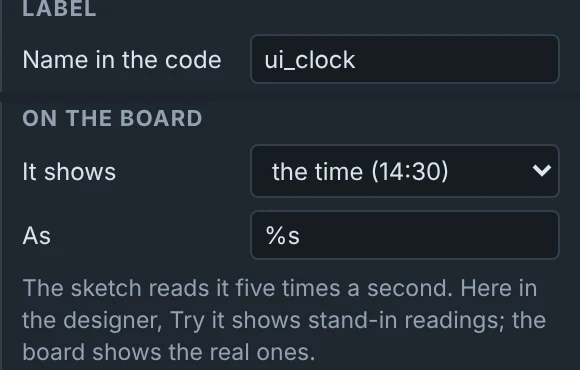
ui_clock, the big time: a Label in Roboto Thin, with On the board → It shows → the time (14:30). No code sets it;ui_update()does, five times a second.ui_date: a Label set by the code once a day, because the clock wants the date in its own words ("Saturday 21 November").- The weather card:
ui_wnowis a Picture with It shows → the weather, as a picture;ui_tempandui_hiloare set by the code from the designer's weather (ui_t,ui_tmax,ui_tmin). The town (ui_place, It shows → the town) and sunrise and sunset (ui_sun) are there too, Hidden at the start on the 7"; untick that to show them. - The forecast row: five little columns (
ui_d1toui_d5, each with a picture and a high and low), filled by the code when the forecast arrives. ui_alarm, the alarm time: a Button that goes to the Alarm screen, with an off look (When it is off: "Off", grey).ui_snooze,ui_radio,ui_stnandui_vol: buttons and a slider with Run my own code ticked; the radio set and the station also Go to screen Radio.ui_wifiand the gear: the Wi-Fi icon (It shows → the Wi-Fi icon, coloured by the signal) and a button to Setup.ui_batt: the battery reading, Hidden at the start; the battery version's code shows it where you designed it.
4. What it does without code
Before the code, notice how much the designer already handles:
- The time, the town, the Wi-Fi icon and the weather picture: On the board → It shows on each.
- Wi-Fi chosen on the screen: the Wi-Fi networks screen, added with + Wi-Fi screens, with its keyboard and the networks it remembers.
- Moving between screens: Go to screen on the buttons.
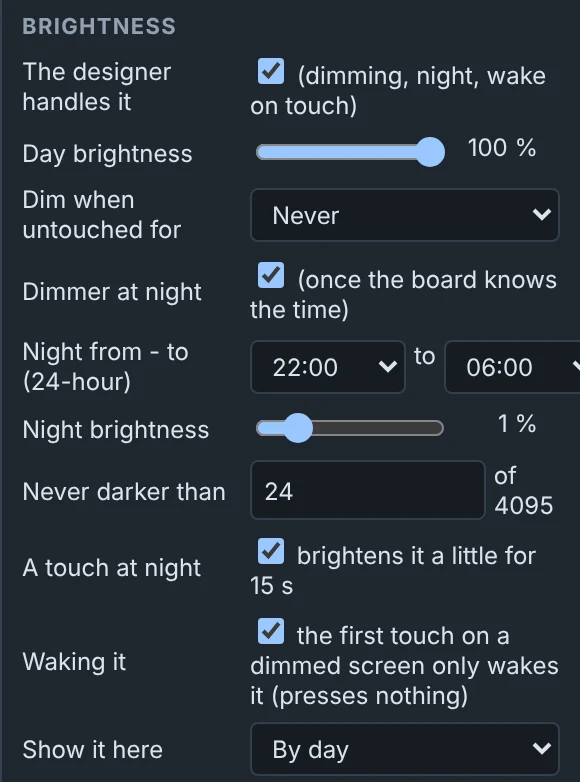
- The brightness: the screen's Brightness section: full by day (dimming when untouched is off until someone sets it in Setup), the night from 22:00 to 06:00 at a low glow, a floor it never goes below, and a first touch that only wakes it. The Setup screen's sliders and rollers each have It sets the brightness, so people change it on the board without a line of code.
- The alarm's off look: the alarm button's When it is off.
5. A map of the code
Open the board's Code. Everything the clock adds is in its USER CODE sections; its globals section is long,
so it is laid out in parts, each starting with a // ---- comment:
| Part | What is in it |
|---|---|
| The sound | the I2S pins to the ES8311 codec, the speaker amplifier's enable pin, the Audio object (ESP32-audioI2S library) |
| The stations | five built-in stations, the list shown on the Radio screen (st_name, st_url), favourites, the sleep timer, the volume |
| The alarm | alarm_h, alarm_m, alarm_on, its days (one bit a day), how long it plays, snooze |
| The forecast | fc_fetch(): seven days and the weather now from Open-Meteo, more than the designer's own weather |
| The weather screen | wx_screen_show(): the six tiles, the compass arrow and the week |
| The Setup screen | setup_show(); the clock's colour (acc_…) and backgrounds (bg_…) |
| Your town | tw_find(): looks a town up on Open-Meteo's free geocoding and keeps it |
| The alarm's own sounds | tones_make(): short WAV files made by the sketch in the board's flash, once |
| The codec | codec_begin(): sets the ES8311 up over I2C |
| The station list | st_load(), st_list(), radio_start(), radio_tune(), radio_stop() |
| Finding stations | fs_search(): radio-browser.info's free directory, searched with the on-screen keyboard |
A rule the clock follows throughout: the screen is drawn by the designer, filled by the code. Functions named
…_show() put the current state on the screen (alarm_show(), radio_show(),
setup_show()), and are called whenever the state changes. Nothing else touches those widgets.
6. setup(): bringing it up
By the time the clock's setup section runs, the designer's part has started the screen, built every widget, joined
Wi-Fi, set the clock and fetched the weather once, and ui_bl_begin() has the brightness going. The
clock's own start-up, in order:
- The sound:
codec_begin(), then the audio library's pins, its callback for the song's title and the level meter, and the volume. - Settings from flash:
prefs.begin("clock"), then the stations, the alarm's time, days and sound, the background, the clock's colour and your town, each with a default for the first time. - The screens filled:
alarm_show(),radio_show(),setup_show(), and the background grid and colour dots built (bg_grid_make(),acc_make()). - Finishing touches the designer has no setting for: long station names ending in dots or scrolling round
(
lv_label_set_long_mode), the drop-down lists as tall as what they hold, and the weather card's labels made tappable:
lv_obj_t* wx_taps[6] = {ui_wnow, ui_temp, ui_hilo, ui_wcard, ui_wdiv, ui_place};
for (int i = 0; i < 6; i++) {
  lv_obj_add_flag(wx_taps[i], LV_OBJ_FLAG_CLICKABLE);       // a label or picture can be pressed too
  lv_obj_set_ext_click_area(wx_taps[i], 8);                  // a little bigger than it looks
  lv_obj_add_event_cb(wx_taps[i], wx_open, LV_EVENT_CLICKED, NULL);
}
fc_fetch();   // the forecast, last: the screen is up and filled
7. loop(): every pass, every second
The designer's part of loop() runs LVGL, the brightness (ui_bl_loop()), the weather
every ten minutes, and ui_update(). The clock's section adds, in order:
- Every pass:
audio.loop(), which feeds the radio stream to the speaker. It must run often, so nothing in the loop may wait long. - Ten times a second: the level meter's two bars.
- Every two seconds while playing: the station's line under the song (its site, bit rate and format).
- As needed: a station picked in the list is tuned here, not in the tap's handler, because tuning
takes a moment (
st_pending, a flag). - Once a second: the date (once a day), whether the alarm is due, the sunrise, the snooze, the temperature and today's high and low, and the forecast row when a new forecast has arrived; the forecast is asked for again every hour, or every minute until the first answer.
8. The alarm
Going off
int now = t.tm_hour * 60 + t.tm_min, al = alarm_h * 60 + alarm_m;
bool today = (alarm_days >> t.tm_wday) & 1;              // one of its days
if (alarm_on && today && now == al && t.tm_yday != rang_day) {
  rang_day = t.tm_yday;                                    // once a day
  ringing = true;
  alarm_play();
}
if (ringing && vol < alarm_vol) { vol++; audio.setVolume(vol); }   // louder each second
rang_day keeps it to once a day: the minute lasts sixty passes of the once-a-second block.
The sunrise, and taking over the brightness
The brightness is the designer's, but for the alarm the code takes charge with ui_bl_force: full
while it rings, and over the twenty minutes before, a ramp from dim to full.
int before = (al - now + 1440) % 1440;                   // minutes until the alarm
bool sunrise = alarm_on && today && before > 0 && before <= 20;
ui_bl_force = ringing ? 4095 : sunrise ? map(20 - before, 0, 20, 64, 4095) : -1;   // -1: the designer's again
The figures turn warm white during the sunrise, and blink while it rings. Both are a style change from code, set only when they change.
Snooze and stop
// USER CODE BEGIN ui_snooze_clicked
if (!ringing) return;                          // only while the alarm goes off
alarm_stop();
snooze_until = millis() + 9UL * 60 * 1000;     // again in nine minutes
// USER CODE END ui_snooze_clicked
The alarm's look
alarm_show() puts the alarm on every screen that shows it. The clock screen's alarm uses the off look
the designer made:
char hm[8]; snprintf(hm, sizeof(hm), "%02d:%02d", alarm_h, alarm_m);
ui_alarm_set_off(!alarm_on, hm);   // on: the time in its own colour; off: "Off", grey
The switch on the Alarm screen saves the change and shows it:
// USER CODE BEGIN ui_alarm_on_changed
alarm_on = on;
prefs.putBool("on", alarm_on);
rang_day = -1;
alarm_show();
// USER CODE END ui_alarm_on_changed
Its own sounds
Besides a station, the alarm can play one of its own tones. The sketch doesn't carry them as files: the first time
it runs, tones_make() works each sound out sample by sample and writes it as a short WAV file into the
board's flash (FFat), and the audio library plays it like a station.
9. The radio
- Stations are two lists side by side,
st_name[]andst_url[]: the five built in, then the ones found on the screen, kept in flash. Favourites are a string of addresses;st_list()builds the list's rows, favourites first. - Playing:
radio_start()switches the speaker amplifier on and connects;audio.loop()does the rest. The library's callback,audio_event(), brings the song's title and the meter's levels, and sets variables thatloop()shows: the callback never touches a widget. - The volume: two sliders (the clock screen's and the Radio screen's) kept together by their handlers:
// USER CODE BEGIN ui_vol_changed
vol = value;
audio.setVolume(vol);
lv_slider_set_value(ui_r_vol, vol, LV_ANIM_OFF); lv_slider_set_value(ui_vol, vol, LV_ANIM_OFF);
// USER CODE END ui_vol_changed- Finding stations: the Find stations screen has a Text box and a Keyboard from the designer.
fs_search()asks radio-browser.info for stations matching what was typed, fills the list with what comes back, and a tap adds the station to yours. - The sleep timer counts down on its own button, once a second, and stops the radio when it runs out.
10. Settings that stay
Everything set on the board is kept with Preferences, the ESP32's small store in flash, under the name
"clock":
prefs.putInt("h", alarm_h);             // saved when it changes
alarm_h = prefs.getInt("h", 6);         // read in setup, 6 the first time
The brightness settings are kept by the designer's own code, under "bright"; the Wi-Fi networks under
"wifi". Keep the names short (fifteen letters at most) and keep each store's names apart.
11. Patterns worth copying
- Lists built in code, styled in the designer. The Background screen's tiles: the designer has one tile,
styled as wanted;
bg_grid_make()makes as many as there are backgrounds, copying its look. - The designer's wording kept. The high and low label reads "H: 24°" and "L: 11°" in the designer.
ui_pattern(ui_hilo)turns the designed text into a format, so the code changes only the numbers and you can reword the label in the designer. - Show functions. One
…_show()per part, called after every change, so the screen can't drift from the state. - Slow work by flag. Taps set
st_pending;loop()tunes. - Callbacks set variables, loop shows them. The audio library's callback runs in its own task.
- Whole numbers on screen. Degrees as
"%d°"oflroundf(t); where a decimal is needed,snprintf.
Things to try
- Your own stations: change the five at the top of the globals, or select the board and use Radio stations in Properties.
- A longer snooze: change the 9 in
ui_snooze_clicked, and the zzZ label in the designer to match. - A gentler wake: make the volume climb every two seconds instead of every second.
- A sixth forecast day: add a column in the designer (copy
ui_d5and its labels), name themui_d6…, and add them to the arrays in the loop. - Night figures in red: in the once-a-second block, when the designer's night is on
(
ui_bl_is_night), setui_clock's text colour to a deep red.