What you need
- SimuCraft for Windows, 0.6.5 beta or later, or the web version.
- For your own house: Home Assistant on your network, and a Guition 7" or 4.3" ESP32-P4.
- Writing for the display boards, read first.
Open Examples → Guition 7" P4 display → Smart-home wall panel. Until it has a token the
panel asks Home Assistant nothing, and says so in red at the top right. In SimuCraft the lab's pretend house takes
any token: open the board's Code, replace paste your long-lived access token here with any
word, and the panel comes alive.
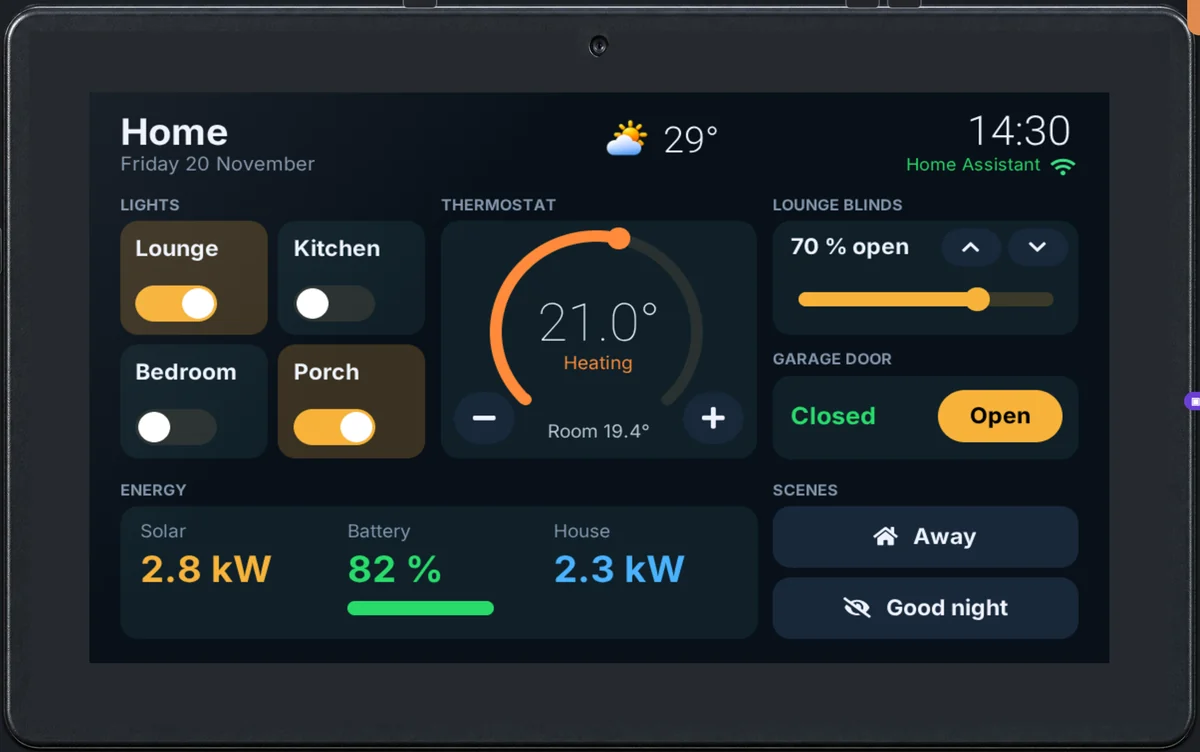
1. One screen, fifty widgets
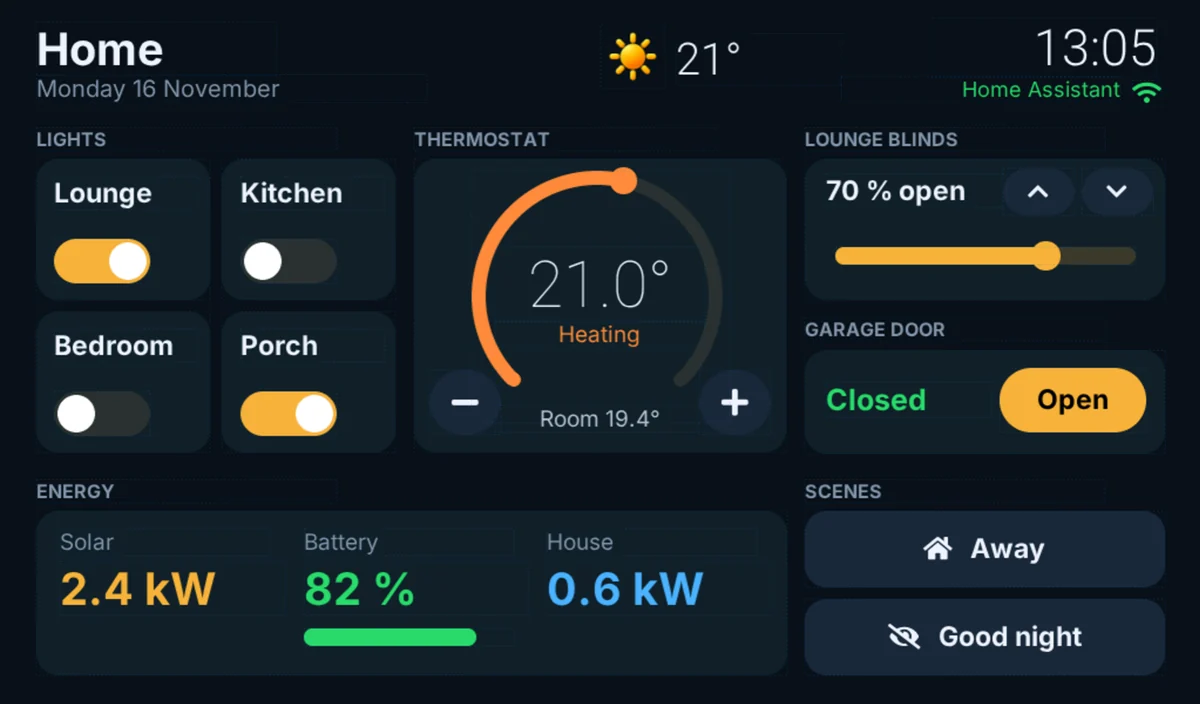
- Lights: four tiles (panels,
ui_lounge_tileand the others), each with a name and a switch (ui_lounge_sw…). - Heating: an Arc (
ui_arc) for the set temperature, with − and + buttons, the set temperature (ui_set), the room's (ui_room) and whether it is heating (ui_heat). - Blinds: a slider (
ui_blinds), Open and Close buttons, and how far open. - Garage: its state and one button that opens or closes it.
- Power: solar, the house and the battery, with a bar.
- Scenes: Away and Good night.
- Across the top: the time, the weather picture and the Wi-Fi icon, all three On the board → It shows, and the outside temperature, set by the code from the designer's weather.
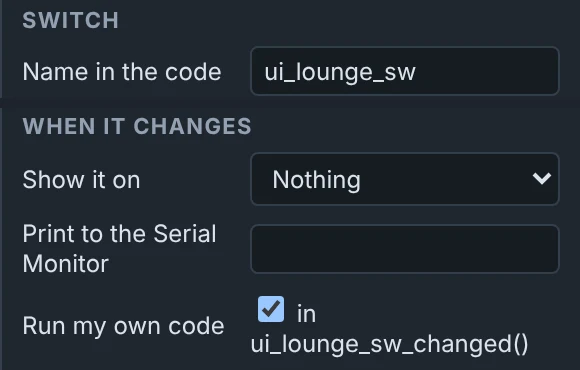
Every switch, slider, arc and button has Run my own code ticked: each one changes something in the house, which the designer can't know how to do. Their handlers are one or two lines each, because the work is in functions in the globals.
2. How it talks to Home Assistant
Home Assistant has a REST API: web addresses on your Home Assistant that read and change things. Two kinds are all the panel needs:
| To | Ask | Example |
|---|---|---|
| read an entity | GET /api/states/<entity> | /api/states/light.lounge answers {"state": "on", …} |
| do something | POST /api/services/<domain>/<service> | /api/services/light/turn_on with {"entity_id": "light.lounge"} |
Every request carries a long-lived access token, which tells Home Assistant the panel is allowed. The top of the globals has both settings:
const char* HA_URL = "http://homeassistant.local:8123";
const char* HA_TOKEN = "paste your long-lived access token here";
Two small functions do all the talking. ha_get(id, doc) reads one entity into a JSON document;
ha_call(domain, service, body) asks Home Assistant to do something:
void ha_call(const char* domain, const char* service, String body) {
  touched_at = millis();
  if (WiFi.status() != WL_CONNECTED || !ha_set()) return;   // not set up: the screen still shows the change
  HTTPClient http;
  http.setConnectTimeout(1500);                             // give up quickly
  http.begin(String(HA_URL) + "/api/services/" + domain + "/" + service);
  http.addHeader("Authorization", String("Bearer ") + HA_TOKEN);
  http.addHeader("Content-Type", "application/json");
  http.setTimeout(3000);
  int code = http.POST(body);
  http.end();
  Serial.println(String("Home Assistant: ") + domain + "." + service + " " + body + " -> " + code);
  ha_at = 0;   // read the house again straight away
}
The timeouts are short on purpose. These requests run from handlers and from loop(), and while one
waits the screen can't move. A house that answers in milliseconds costs nothing; a house that doesn't answer at all
costs a second and a half, not thirty.
3. Reading the house
ha_read() reads every entity in turn and shows each on the screen:
for (int i = 0; i < 4; i++)
  if (ha_get(LIGHT_ID[i], doc)) { light_on[i] = String(doc["state"] | "") == "on"; show_light(i); }

if (ha_get("climate.house", doc)) {
  room_temp = doc["attributes"]["current_temperature"] | NAN;
  heating = String(doc["attributes"]["hvac_action"] | "") == "heating";
  { char nb[32]; snprintf(nb, sizeof(nb), "Room %.1f°", room_temp); lv_label_set_text(ui_room, nb); }
  lv_label_set_text(ui_heat, heating ? "Heating" : "Idle");
}- Entity names in one place: the lights are an array,
LIGHT_ID[4] = {"light.lounge", …}, so the four tiles are one loop. - Temperatures with a decimal go through
snprintf: the board's LVGL can't print%f. - It gives up early: if the first light doesn't answer, it doesn't try the rest. The status line says "No Home Assistant", and it tries again in 30 seconds.
- Between requests it lets the screen breathe:
ha_get()callslv_timer_handler()first, so taps are felt even during a read.
4. Changing the house
Each handler is short, because each says only what; the functions in the globals know how:
// USER CODE BEGIN ui_lounge_sw_changed
light_changed(0);
// USER CODE END ui_lounge_sw_changed

// USER CODE BEGIN ui_plus_clicked
temp_to(set_temp + 0.5);
// USER CODE END ui_plus_clicked

// USER CODE BEGIN ui_night_clicked
ha_call("scene", "turn_on", ent("scene.good_night"));
// USER CODE END ui_night_clicked
light_changed(i) shows the change at once (the tile warms to amber), then tells Home Assistant:
void light_changed(int i) {
  light_on[i] = lv_obj_has_state(LSW[i], LV_STATE_CHECKED);
  show_light(i);                                              // the screen first: it feels instant
  ha_call("light", light_on[i] ? "turn_on" : "turn_off", ent(LIGHT_ID[i]));
}
The arc counts in half degrees (its range is 20 to 60, for 10° to 30°), so its handler halves the value:
temp_to(lv_arc_get_value(ui_arc) / 2.0);. The blinds' slider only sends when you let go:
if (!lv_slider_is_dragged(ui_blinds)) ha_call(…); while it moves, only the label follows.
5. Both ways at once
The panel reads the house every three seconds, from loop():
if (millis() - ha_at > (ha_ok ? 3000UL : 30000UL) || ha_at == 0) ha_read();So a light switched from the Home Assistant app or a wall switch shows on the panel within three seconds. And after
a change made on the panel, ha_call() sets ha_at = 0 so the house is read straight back.
One catch: a read that arrives while your finger is on the arc would jump it back to the old value. So the code keeps when the panel was last touched, and leaves the arc and the blinds alone for four seconds after:
if (millis() - touched_at > 4000) set_temp = doc["attributes"]["temperature"] | 21.0;6. On your own house
- A token. In Home Assistant, open your profile → Security → Long-lived access tokens → Create token. Copy it (it is shown once).
- The two settings. In the board's Code window, put your Home Assistant's address in
HA_URL(http://homeassistant.local:8123works on most networks; otherwise its IP address) and the token inHA_TOKEN. Until a token is pasted in, the panel asks nothing and says so. - Your entities. In Home Assistant, Settings → Devices & services → Entities lists their names.
Put yours in place of
light.lounge,climate.house,cover.lounge_blinds,cover.garage_door,sensor.solar_powerand the scenes. Rename the tiles' labels in the designer to match. - Upload with Real board, giving your Wi-Fi. The Serial Monitor shows every request and Home Assistant's answer (200 is good; 401 means the token is wrong; 404, the entity name).
Things to try
- A fifth light: copy a tile in the designer (its panel, label and switch), name them
ui_study_tileandui_study_sw, tick Run my own code, make the arrays five long, and calllight_changed(4). - Dim it at night: Brightness → The designer handles it, on the screen. No code.
- A doorbell: read
binary_sensor.doorbellinha_read(), and when it turns on, show a hidden panel with "Someone's at the door" for a minute. - A second screen: + Screen in the designer for the bedrooms, with a button on each screen that goes to the other.