What you need
- SimuCraft for Windows, 0.6.5 beta or later, or the web version.
- Optional: a Guition 7" or 4.3" ESP32-P4 and Wi-Fi.
- Writing for the display boards, read first.
Open Examples → Guition 7" P4 display → Weather station.
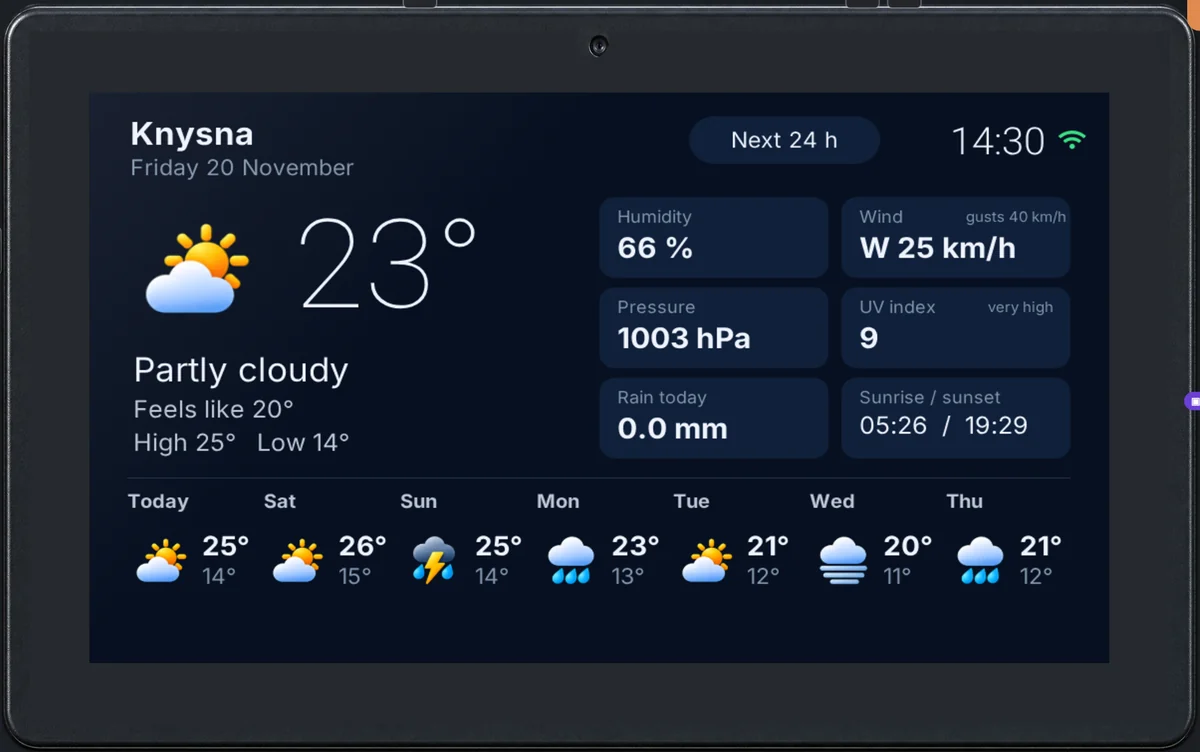
1. What it shows
- The Weather screen: the town and the time; the weather now as a large picture with the temperature, what it is ("Partly cloudy"), what it feels like, and today's high and low; six tiles (humidity, wind with its gusts, pressure, UV, rain, sunrise and sunset); and the week, today and six days on.
- The Next 24 hours screen: every two hours from now, the time, a picture, the temperature and the chance of rain as a bar.
2. The two screens
Click Design screen. The design is 122 widgets, all plain ones: labels, pictures, panels for the tiles, two buttons and twelve bars.
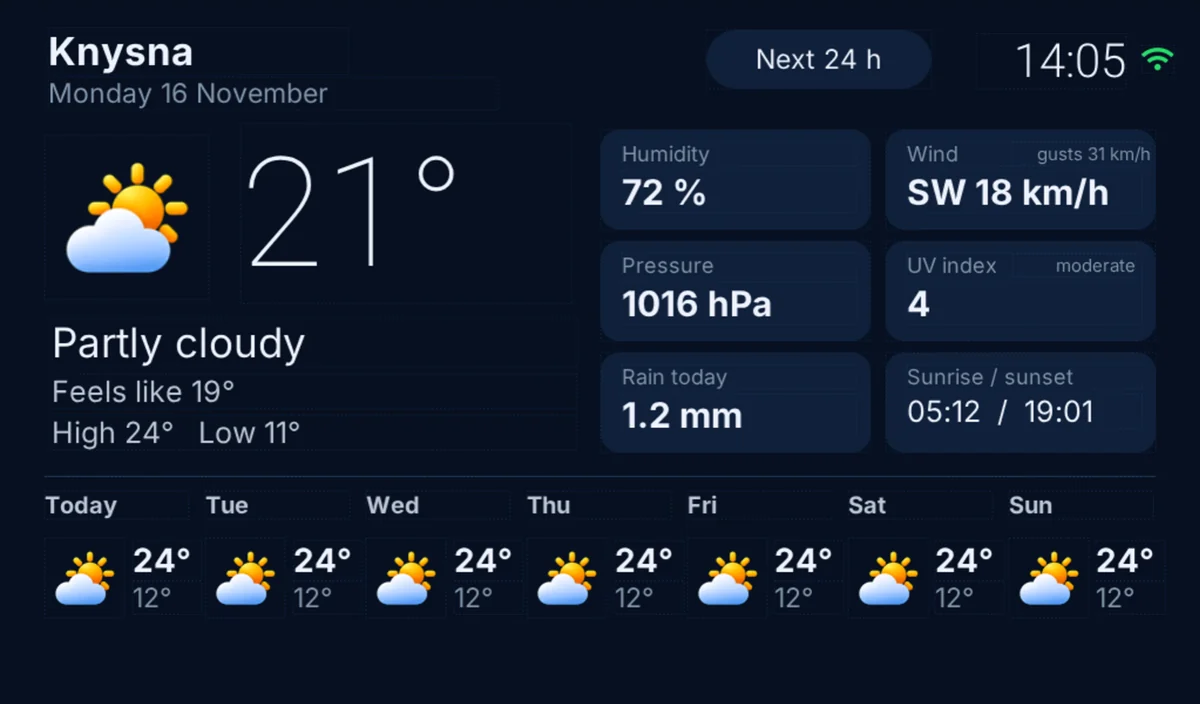
ui_main), as designed.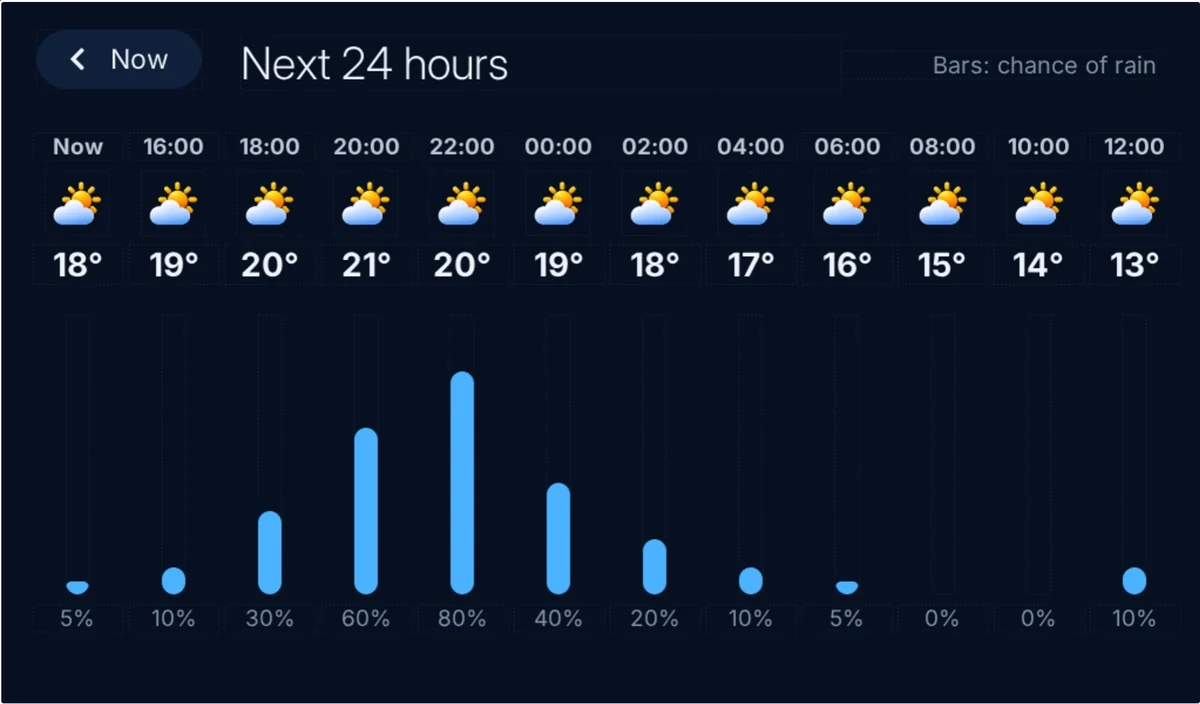
ui_hours).Every widget the code fills has a name that says where it is: ui_temp, ui_desc,
ui_hum_v (the humidity tile's value), ui_d3_hi (the third day's high),
ui_h7_bar (the seventh hour's rain bar). Numbered names matter: the code walks through them in a loop.
The values in the designer are samples, chosen to look right while you design: the code replaces them all.
The two buttons need no code: Next 24 h (ui_next) has Go to screen → Next 24 hours, and
Back on the other screen goes back, sliding the other way.
3. What the designer shows by itself
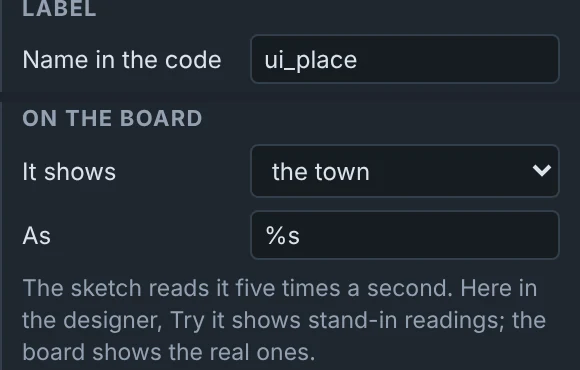
Four widgets are filled by the designer, chosen under On the board → It shows:
| Widget | It shows |
|---|---|
ui_place | the town |
ui_time | the time (14:30) |
ui_wifi | the Wi-Fi icon, coloured by the signal; a tap opens the Wi-Fi screen |
ui_wnow | the weather, as a picture |
Because they need the time and the weather, the designer writes Wi-Fi, the clock and its basic weather into the
sketch: ui_net_begin(), ui_weather() every ten minutes, and the variables
ui_t, ui_lat, ui_lon and their kind. The station's own code builds on
those.
4. Fetching the weather
The designer's weather is the weather now and today. The station wants more: every hour for two days and the whole
week. So its globals have their own fetch, wx_fetch(), one request to Open-Meteo, free and with no
key:
void wx_fetch(void) {
wx_at = millis();
if (WiFi.status() != WL_CONNECTED) return;
HTTPClient http;
http.begin("https://api.open-meteo.com/v1/forecast?latitude=" + String(ui_lat, 2) +
"&longitude=" + String(ui_lon, 2) +
"¤t=temperature_2m,apparent_temperature,relative_humidity_2m,weather_code,..." +
"&hourly=temperature_2m,precipitation_probability,weather_code,is_day" +
"&daily=weather_code,temperature_2m_max,temperature_2m_min,precipitation_sum,sunrise,sunset" +
"&wind_speed_unit=kmh&forecast_days=7&timezone=auto");
http.setTimeout(10000);
if (http.GET() == 200) {
JsonDocument doc;
if (!deserializeJson(doc, http.getString())) {
now_t = doc["current"]["temperature_2m"] | NAN;
...
for (int i = 0; i < 48; i++) hr_t[i] = doc["hourly"]["temperature_2m"][i] | NAN;
for (int i = 0; i < 7; i++) dy_max[i] = doc["daily"]["temperature_2m_max"][i] | NAN;
...
wx_ok = true; wx_shown = false; // new weather, not on the screen yet
}
}
http.end();
}- The town is the designer's:
ui_latandui_loncome from the screen's Wi-Fi, time and weather settings, so changing the town there changes this request too. - It only fetches: it fills variables (
now_…,hr_…,dy_…) and setswx_shown = false. Showing is another function's job. | NAN: ArduinoJson's "or else". A missing value becomes not a number, which the showing code turns into "--" rather than a wrong 0.- HTTPS: Open-Meteo turns plain http away. The board's Wi-Fi chip does the secure part.
5. Putting it on the screens
wx_show() takes the last answer and fills both screens. A few of its lines show the patterns:
String deg(float v) { return isnan(v) ? String("--") : String((int)lroundf(v)) + "°"; }

ui_wx_set(ui_wnow, now_code, now_day);                    // the picture for the code, by day or night
lv_label_set_text(ui_temp, deg(now_t).c_str());           // whole degrees
lv_label_set_text(ui_desc, WX_TEXT(now_code));            // "Partly cloudy"
lv_label_set_text_fmt(ui_hum_v, "%d %%", (int)now_hum);   // %% for a % sign
{ char nb[32]; snprintf(nb, sizeof(nb), "%.1f mm", dy_rain[0]); lv_label_set_text(ui_rain_v, nb); }   // a decimal: snprintf

// the week: the widgets in arrays, filled in a loop
lv_obj_t* his[7] = {ui_d1_hi, ui_d2_hi, ui_d3_hi, ui_d4_hi, ui_d5_hi, ui_d6_hi, ui_d7_hi};
for (int i = 0; i < 7; i++) lv_label_set_text(his[i], deg(dy_max[i]).c_str());

// the next 24 hours, every two hours from this hour
for (int i = 0; i < 12; i++) {
  int k = hr + i * 2;
  lv_label_set_text_fmt(hh[i], i == 0 ? "Now" : "%02d:00", hr_hour[k]);
  lv_bar_set_value(hb[i], (int)hr_pop[k], LV_ANIM_ON);    // the rain bar
}- Rain is the one decimal, so it is the one
snprintf: the board's LVGL can't print%f(it would show "f mm"). - Arrays of widgets turn seven days into one loop. Name widgets so they can go in arrays.
WX_TEXT(), in the globals, turns Open-Meteo's weather codes (the WMO's) into words;ui_wx_set(), the designer's, turns them into the right picture.
6. When it runs
In setup, the station fetches once. In loop, its once-a-second block decides the rest:
if (!wx_ok && millis() - wx_at > 60000) wx_fetch();     // no answer yet: ask again in a minute
if (millis() - wx_at > 15UL * 60 * 1000) wx_fetch();    // and every 15 minutes
if (wx_ok && !wx_shown) wx_show();                       // new weather: show it, once
The date is set there too, once a day. Fetching and showing are apart, so a slow answer never leaves the screen half-filled, and the screen is only redrawn when there is something new.
7. One set of icons, three sizes
The weather appears in three sizes: large for now, smaller for the week and the hours. Pictures take room in
flash, so the designer stores each weather icon once, at the large size, in ui_assets.h. The station's
setup code shrinks the small ones:
#define WX_BIG 140   // the weather now's picture, as stored
#define WX_DAY 68    // the week's
#define WX_HOUR 55   // the hours'
...
lv_obj_set_size(small[i], px, px);
lv_image_set_scale(small[i], px * 256 / WX_BIG);   // 256 is full size
This is the kind of change your setup section can make to what ui_create() built: it runs after.
8. Your town
Select the screen in the designer and change Town, Latitude, Longitude and Time zone under Wi-Fi, time and weather, or tick Find the town by itself to look it up from the board's internet connection. The designer's weather, the town label and the station's own fetch all follow.
The station also reads the nearest airport's own report (its METAR, from aviationweather.gov) for the temperature
and wind measured there in the last two hours. Near an airport that is closer to the truth than a forecast model.
The designer does this inside ui_weather().
Things to try
- A Refresh button: the worked example in Writing for the display boards.
- Imperial units: set Units to Imperial in the designer, and change
wind_speed_unit=kmhinwx_fetch()tomph, with&temperature_unit=fahrenheit. - Colour the temperature: in
wx_show(), blue below 10°, orange above 28°, withlv_obj_set_style_text_color. - Rain in the hours: show each hour's chance of rain only above 20 %, hiding the label otherwise with
LV_OBJ_FLAG_HIDDEN. - Dim it at night: tick Brightness → The designer handles it on the screen and set the night hours. No code.